

When multiple media buyers work with different ad platforms while a Team Lead and finance specialist oversee spending, the team needs a centralized management system. Otherwise, information gets scattered across spreadsheets and work chats, while keeping track of campaign launches requires extra effort.
RentAcc brings the entire team together in one workspace, allowing you to manage access to ad platforms, assign employee roles, track spending, and receive notifications about important events. Additional automation tools help keep routine operations under control without constant manual intervention.
Let’s take a closer look at how Team Access works in RentAcc and what it offers teams running in-app campaigns and working with other advertising sources.
One Workspace for the Entire Team
RentAcc lets you bring all your advertising accounts, financial reports, and team members together in a single interface. The workspace is created by the Owner, who invites employees and determines which features and ad platforms each person can access.
This makes it possible to establish a clear access management system without sharing logins and passwords. Each team member works under their own account and sees only the sections relevant to their responsibilities.
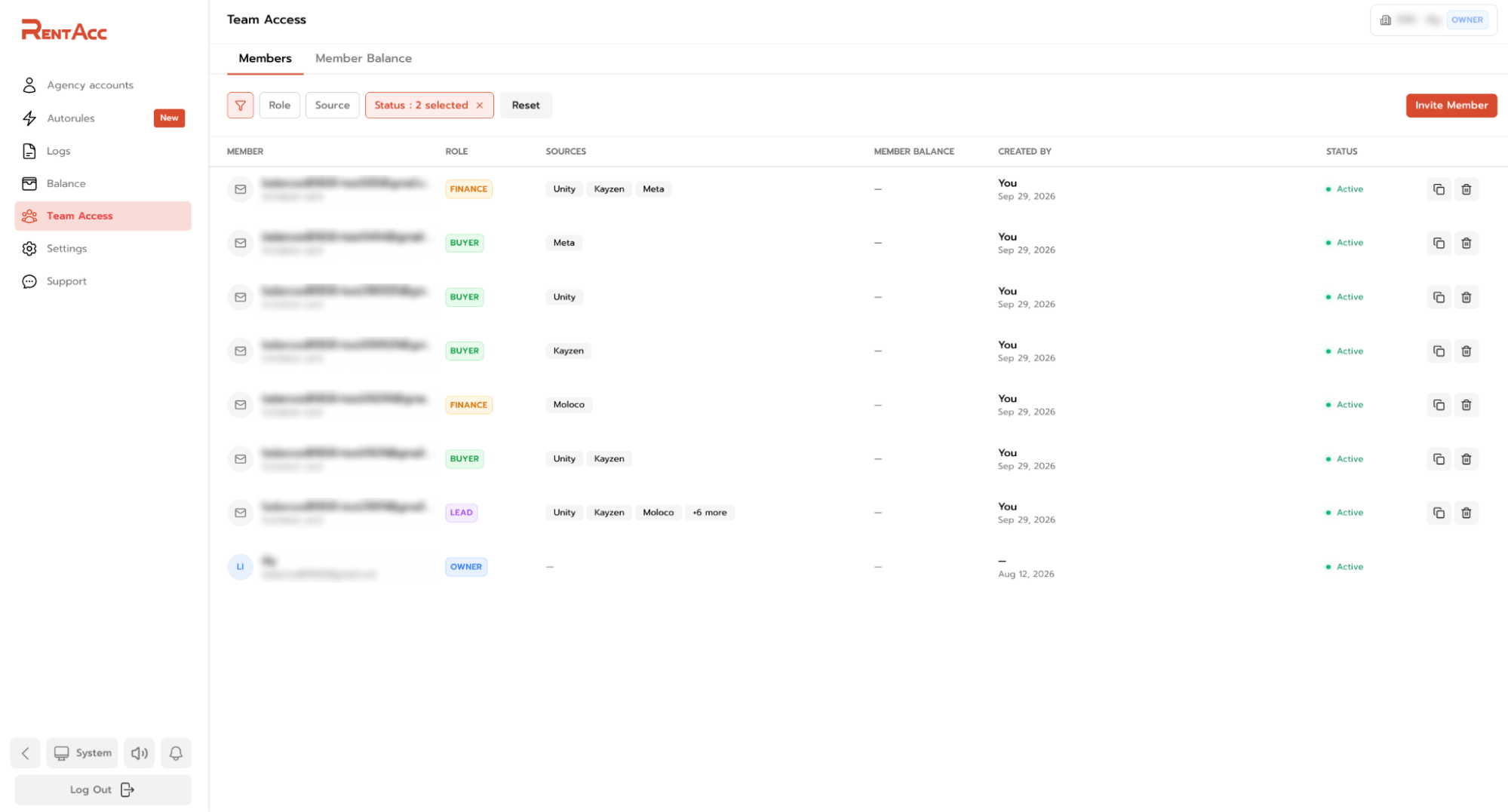
The Team Access → Members section contains a list of everyone in the workspace. Here, you can view each employee’s role, available ad platforms, balance and current status. The list also shows who added each user.

Access permissions are configured individually. For example, one media buyer can work exclusively with Meta, another employee can access Unity and Moloco, while the Team Lead oversees several platforms at once. This helps define clear areas of responsibility and maintain a consistent workflow across the team.
Roles and Permissions: Who Is Responsible for What?
RentAcc offers four roles to organize teamwork. Each role determines what actions an employee can perform and which information they can access.
- Owner — full control over the workspace, advertising accounts, team, and finances.
- Team Lead — account management and balance top-ups.
- Buyer — works with their own accounts without access to colleagues’ accounts.
- Finance — access to the finance section without the ability to manage advertising campaigns.
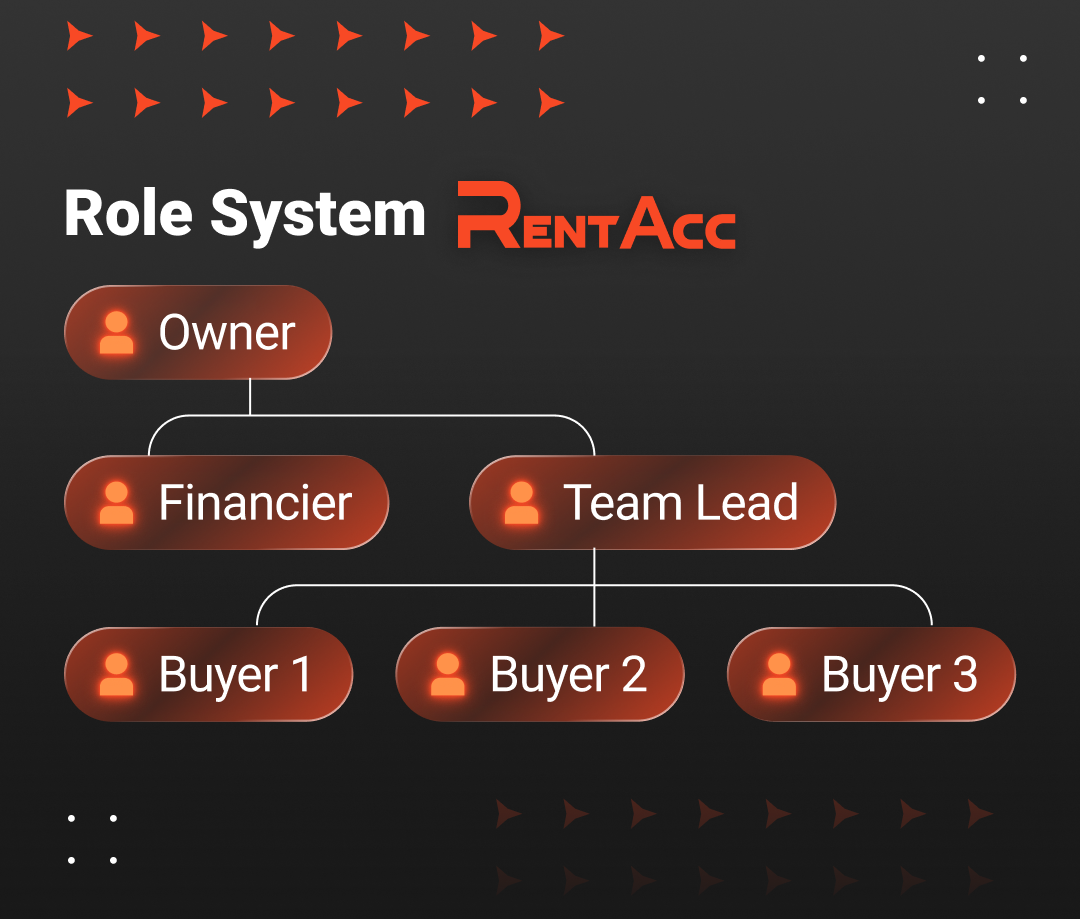
Permissions can be configured to match the team’s structure and the ad platforms it uses. As a result, employees work within the same system without receiving excessive permissions.
How to Invite an Employee to RentAcc
New members are added through the Team Access → Members section in the personal dashboard. The Owner sends the invitation and specifies the user’s role and available ad platforms right away.

Clicking Invite Member opens the invitation form. Enter the employee’s email address, select one of the available roles and choose the ad platforms they will work with.
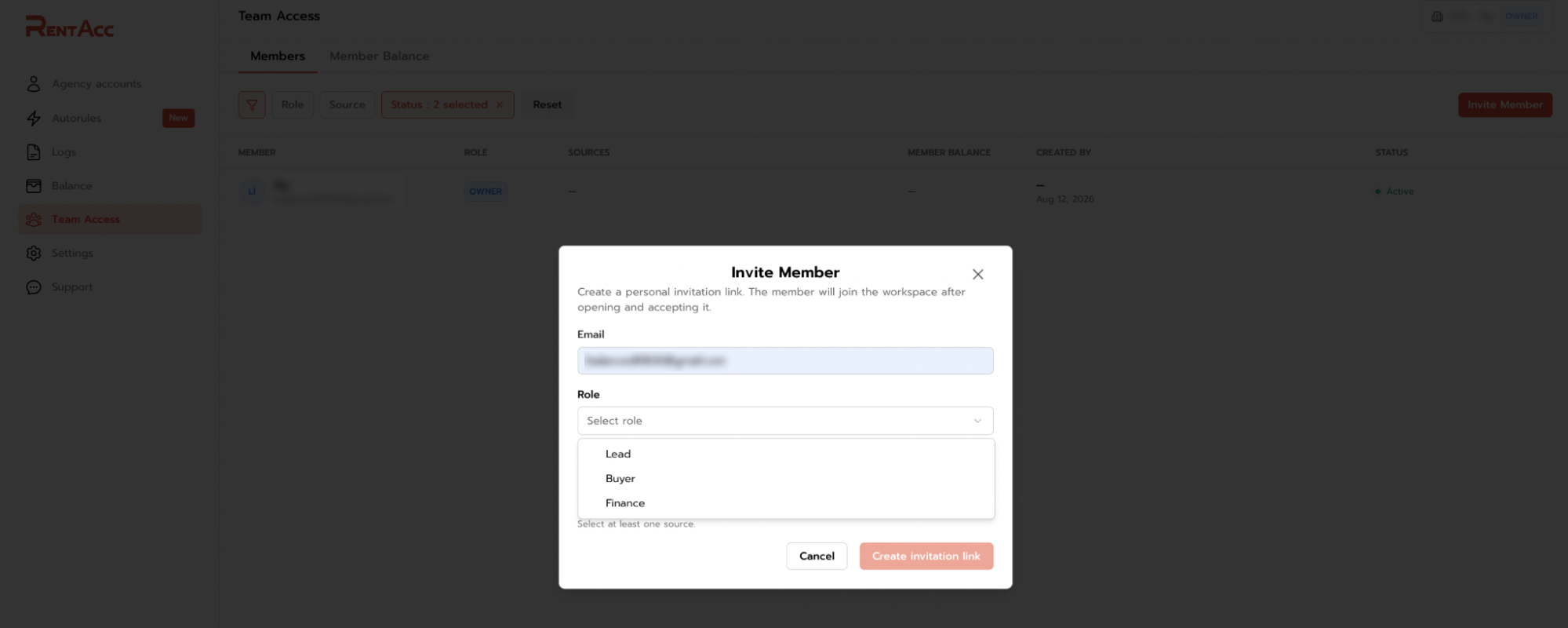
Depending on their responsibilities, an employee can be granted access to one or several platforms, such as Unity, Kayzen, Moloco, Meta, or BIGO Ads. Other platforms in the workspace can remain inaccessible to them.

Once the form is completed, RentAcc generates a personal invitation link. Send it to the employee so they can join the workspace.
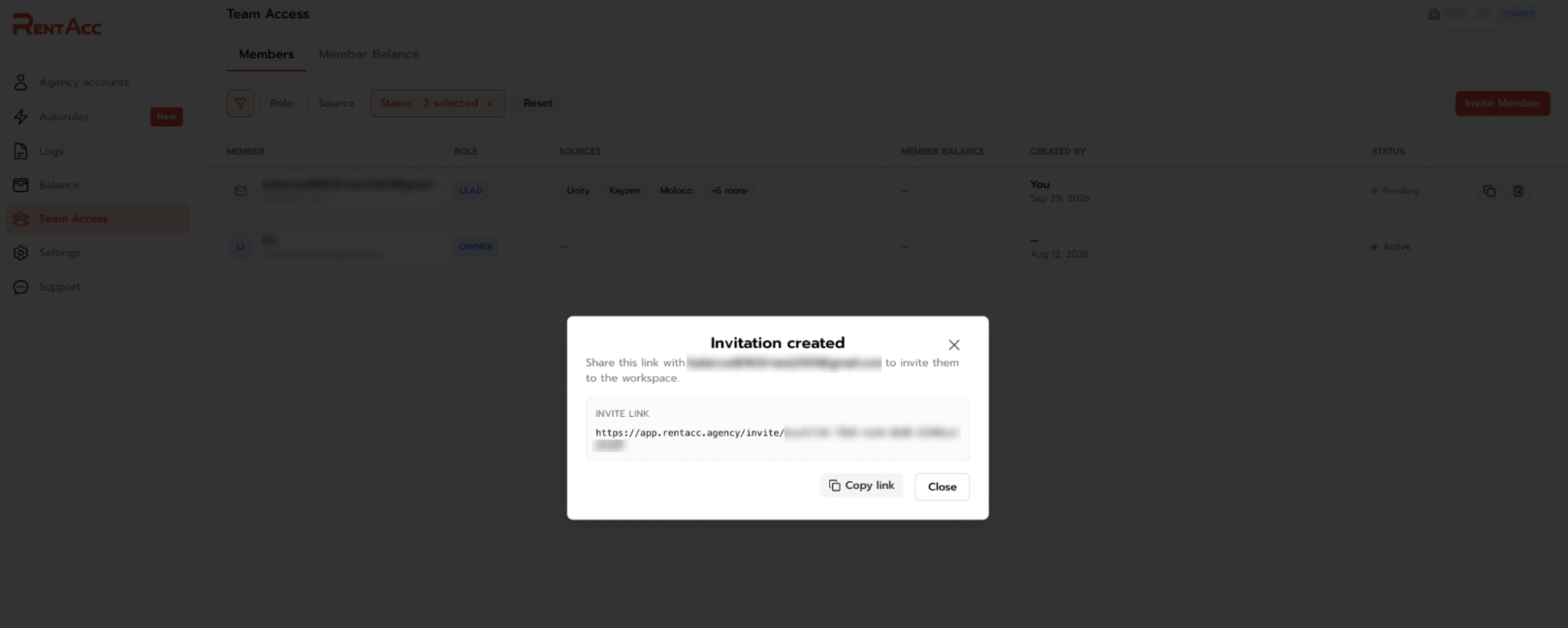
Until the invitation is accepted, the user appears in the members list with a Pending status. You can also check their assigned role and selected platforms there.

When the employee follows the link and accepts the invitation, their status changes to Active. They can then work in RentAcc within the scope of the permissions they’ve been granted.
How to Set Up Account Access for a Buyer
RentAcc offers two ways to give a buyer access to advertising accounts. You can reassign an existing account to an employee or set a limit so they can request new accounts themselves. These options can be used together, depending on how your team operates.
Option A. Reassign an Existing Account to a Buyer
If the required account is already in your workspace, you can assign it to a specific buyer.
To do this, open the page for the relevant ad platform, such as Unity. Find the account in the list, click the three dots in the far-right column, select Reissue, and choose the buyer you want to assign the account to.
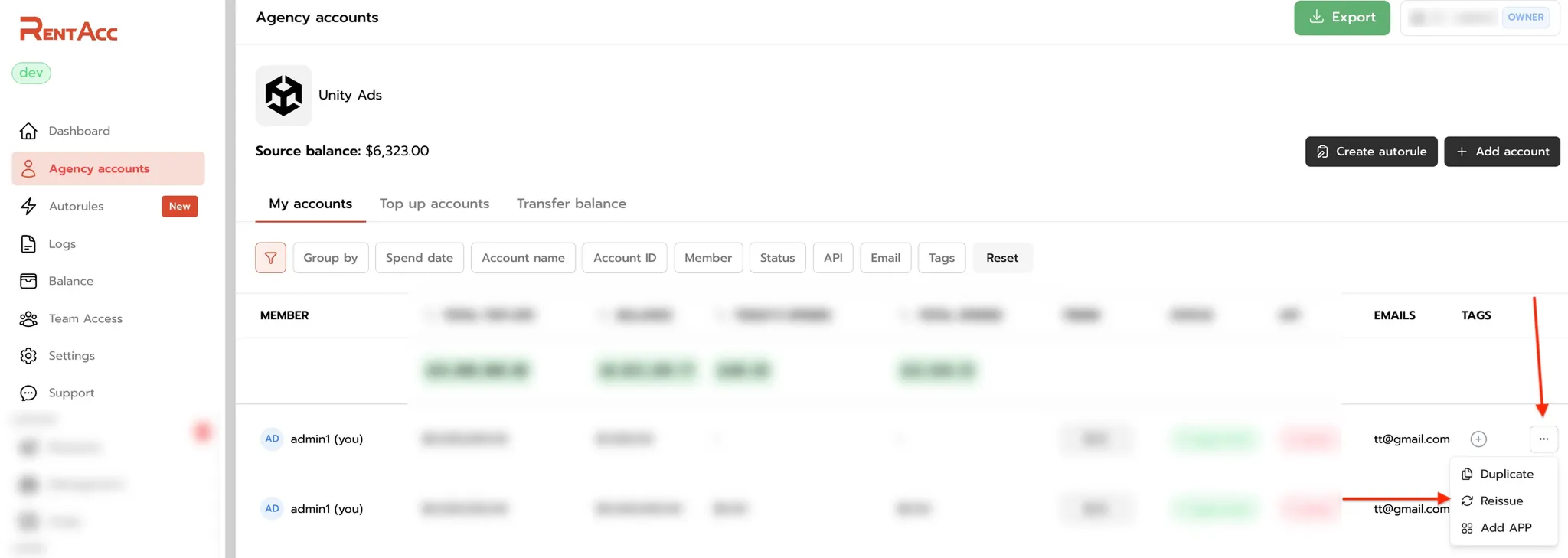
The account will then be assigned to the selected team member.
ℹ️ Important: An account can only be reassigned after the buyer has accepted the invitation and joined the workspace. After the reassignment, they need to refresh the page for the changes to appear in the interface.
Option B. Set a Limit So the Buyer Can Request Accounts Themselves
If the buyer needs to request new accounts independently, first set a limit for them under the Member Balance tab.
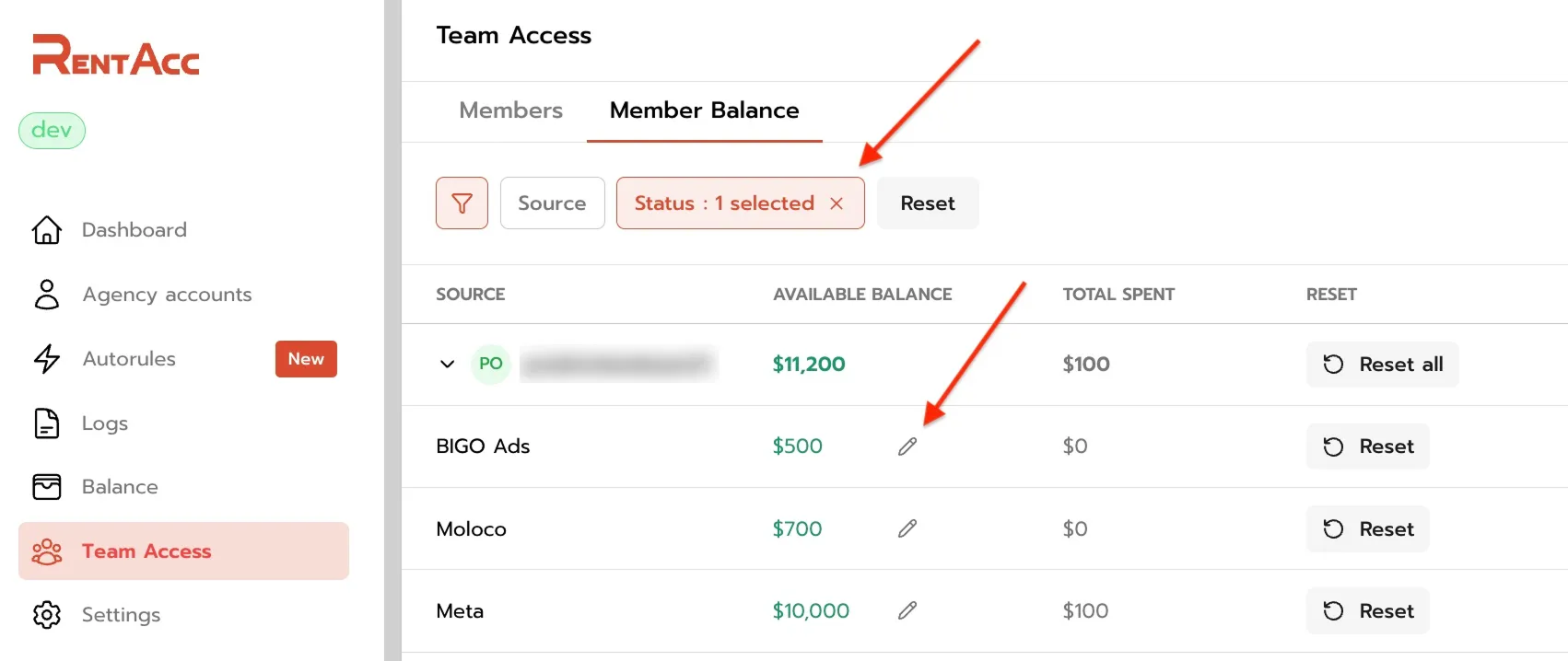
This is where the Buyer Limit parameter comes in. It sets an additional spending limit for an individual buyer and works alongside the ad platform’s actual balance (Source Balance).
The amount available to the buyer is calculated using the following formula:
Available to the buyer = MIN (Source Balance, Buyer Limit)
In other words, the buyer can use an amount that does not exceed either their assigned limit or the actual balance available on the ad platform.
For example:
| Source Balance | Buyer Limit | Available to the Buyer |
| $20,000 | $5,000 | $5,000 |
| $5,000 | $20,000 | $5,000 |
Even if the Buyer Limit exceeds the ad platform’s balance, the buyer cannot use more funds than are actually available in the Source Balance.
💡 Tip: If no additional restriction is needed and the buyer should have access to the entire available balance, set a sufficiently high Buyer Limit, such as $500,000. The actual Source Balance will then remain the only limit on the available amount.
This gives you flexibility in organizing your team’s workflow: you can manually assign existing accounts or let buyers request new ones themselves within a predefined limit.
Unified Dashboard: Monitor Campaign Launches and Spending in One Place
When several media buyers are working simultaneously, it’s difficult to assess each person’s performance separately. Managers have to compare data from different sources, check spending, and piece together an overall picture of campaign activity.
To address this, RentAcc provides a unified dashboard with team-level charts. It helps managers quickly assess spending trends and see how activity is distributed across team members and advertising platforms.
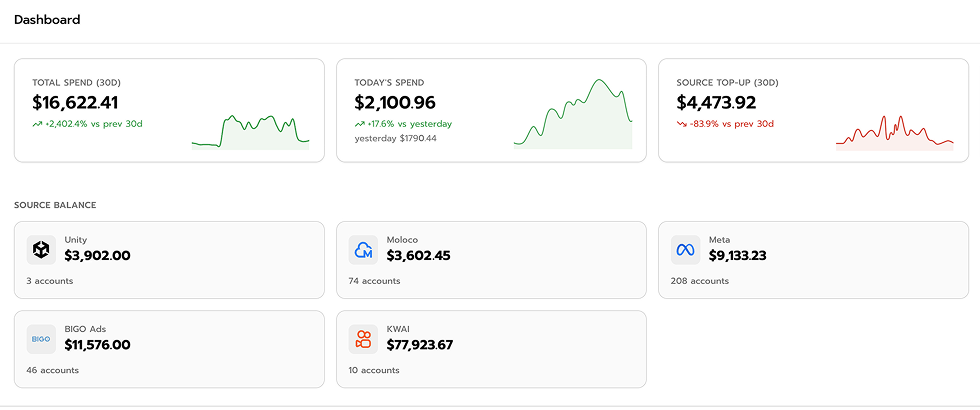
We designed the dashboard to provide a complete overview of the entire team on a single page. Team Leads and Owners can open the charts and immediately see what’s happening with campaign launches, without having to compile the data manually.
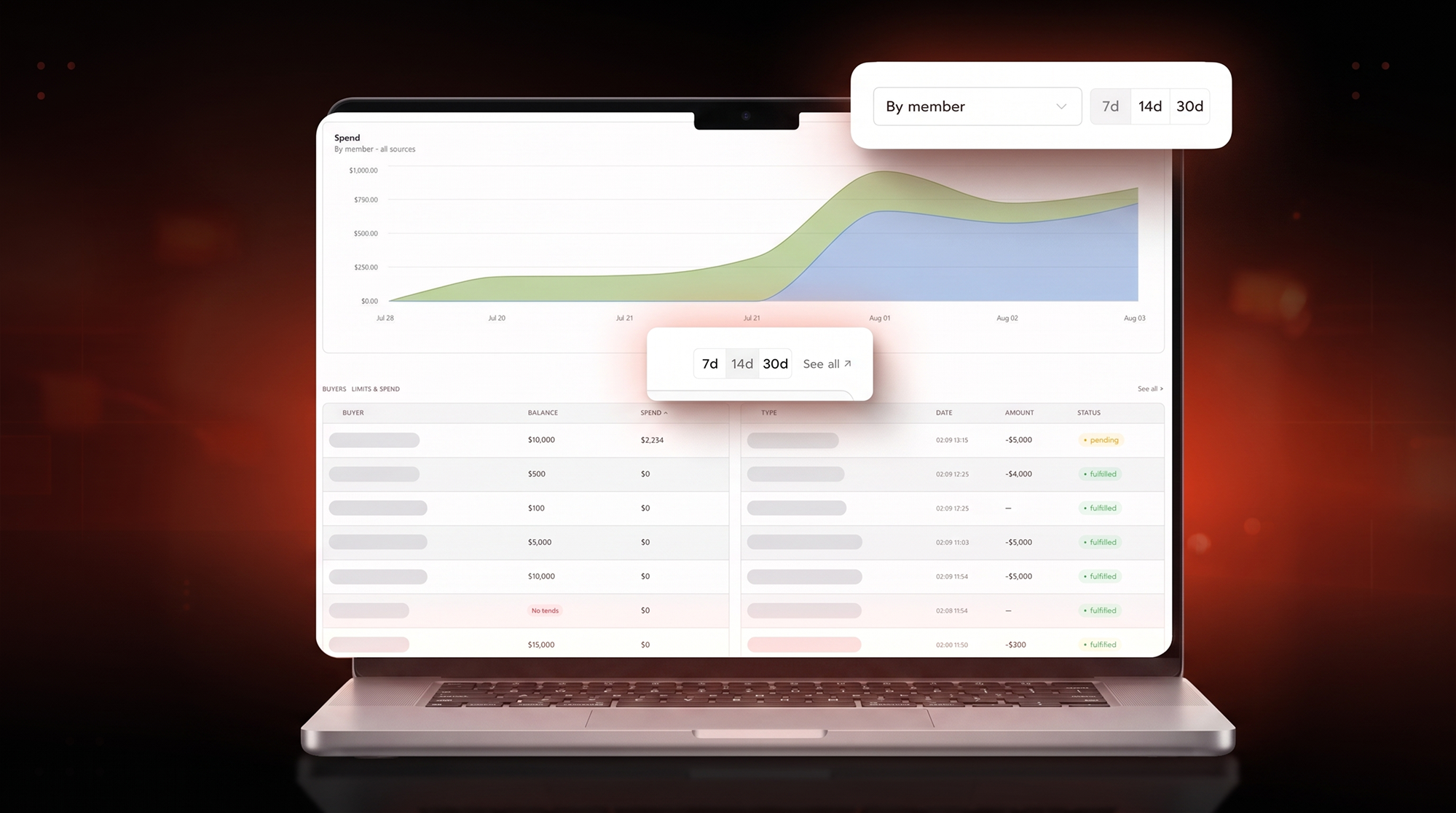
The dashboard includes the following views:
- Total Spend trends. The chart shows how the team’s overall spending changes over time, whether it’s increasing or decreasing.
- Breakdown by media buyer over 7, 14 and 30 days. Compare team members’ spending across different periods and track how volumes are distributed.
- Charts by ad platform. See how spending is allocated across the platforms in use.
- Charts by team member. Review performance metrics for individual employees.
Telegram Notifications: Stay Updated on Important Events Without Constant Checks
When working with advertising accounts, some events require immediate attention: a balance changes, a top-up goes through, an automated rule is triggered, or an account status changes. Checking everything manually takes time away from media buyers and makes oversight more complicated for Team Leads.
RentAcc addresses this with Telegram notifications. These are alerts about selected events in the workspace that are automatically sent to a connected Telegram chat or account. Employees don’t need to keep the platform interface open to monitor changes.
Each team member can configure notifications to match their responsibilities:
- Media buyers receive updates about the advertising accounts they manage and events relevant to their work.
- Finance specialists track top-ups, transfers, refunds and other financial transactions.
- Team Leads configure alerts to monitor accounts and team activity.
The available notifications depend on the selected ad platforms and event types. With individual settings, employees receive relevant information without turning work chats into a constant stream of messages about every action taken by the team.
How to Set Up Telegram Notifications
You can find the settings in the personal dashboard under Settings → Telegram Notifications. Here, you can view existing connections or create a new binding by clicking Create Binding.
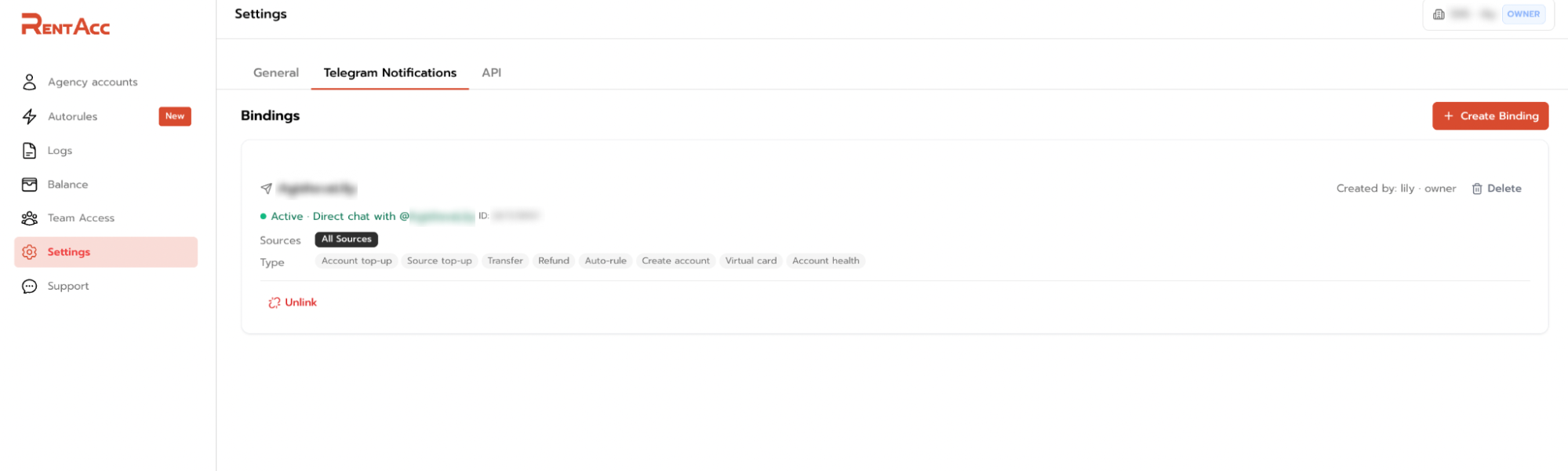
Each binding has a name, selected ad platforms and event types for which notifications should be sent. You can configure alerts for several platforms at once or limit them to a specific source, such as FB, Unity, Kayzen, Moloco, or BIGO Ads.
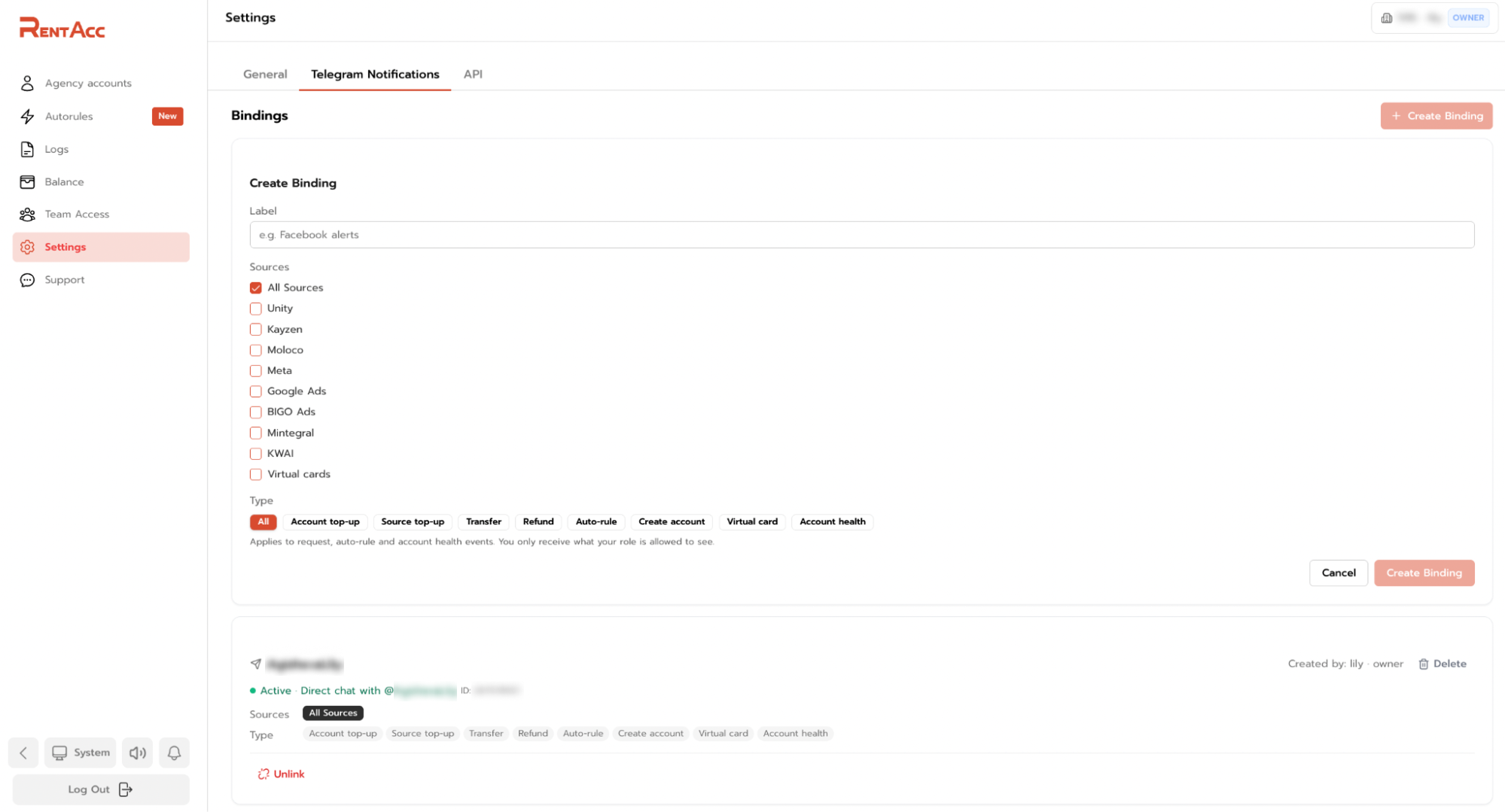
Available event types include:
- Advertising account and ad platform top-ups;
- Low account balance;
- AutoRules triggers;
- Changes to an account’s status or an app’s status in the app store;
- Other events supported by the system.
⚠️ AutoRules are an automation mechanism based on the if → then principle. They let you define a condition and specify the action RentAcc should perform when that condition is met. For example, if an app is banned from an app store, the system can automatically pause the associated campaigns. The exact workflow depends on the available conditions and settings for the relevant ad platform.
To receive notifications, connect your Telegram account or the required chat through the corresponding binding in the settings. Once connected, alerts about the selected events will arrive automatically. You can create multiple bindings with different configurations if needed.
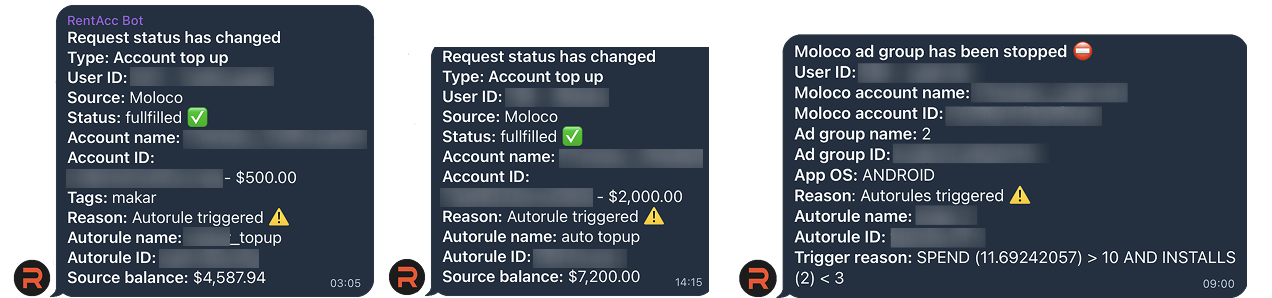
Notification settings help organize information flows in the same way Team Access organizes employee permissions: everyone receives the data they need to do their job.
How Team Access Changes Your Workflow
Team Access brings together several tasks that would otherwise be spread across separate tools and work chats.
- Team management. The Owner assigns roles and determines access to ad platforms.
- Spending oversight. The unified dashboard helps track Total Spend trends and how spending is distributed across media buyers and ad platforms.
- Real-time updates. Telegram notifications report selected events and changes.
- Automation. AutoRules let you configure workflows in advance for specific conditions.
- Clear division of responsibilities. Media buyers, Team Leads and finance specialists work within the scope of their assigned roles.
As a result, it’s easier for the team to maintain a transparent workflow: employees understand the limits of their permissions, managers have the tools they need for oversight, and recurring operations can be partially automated.
This approach works for both small teams, where several people share responsibility for different ad platforms and agencies managing large numbers of accounts and running multiple campaigns simultaneously.
Conclusion
Effective advertising account management requires more than access to ad platforms. It also calls for a clear system for managing the team, finances and ongoing operations.
RentAcc provides a set of complementary tools to help with this: Team Access with role-based permissions, a unified dashboard for spending oversight, Telegram notifications about important events and AutoRules to automate repetitive actions.
Get started with RentAcc to bring your advertising accounts and team together in one workspace, configure access permissions, and use automation tools to streamline campaign management.
Go to RentAcc | Telegram Bot | Latest News
RentAcc is a platform for working with Facebook and in-app — ready-made agency accounts and automation. Suitable for solo buyers and teams who value stability, transparency, and a technological approach.
Commission: 4 to 10%
Inside the platform:
— agency accounts for any verticals and GEOs
— free replacements and money-back guarantee
— centralized control of spending
— technical support for launches
— instant notifications in the TG-bot




Sending the message, you agree to follow by the terms of our. Privacy policy.